




Paul_M
Members
-
Joined
-
Last visited
-
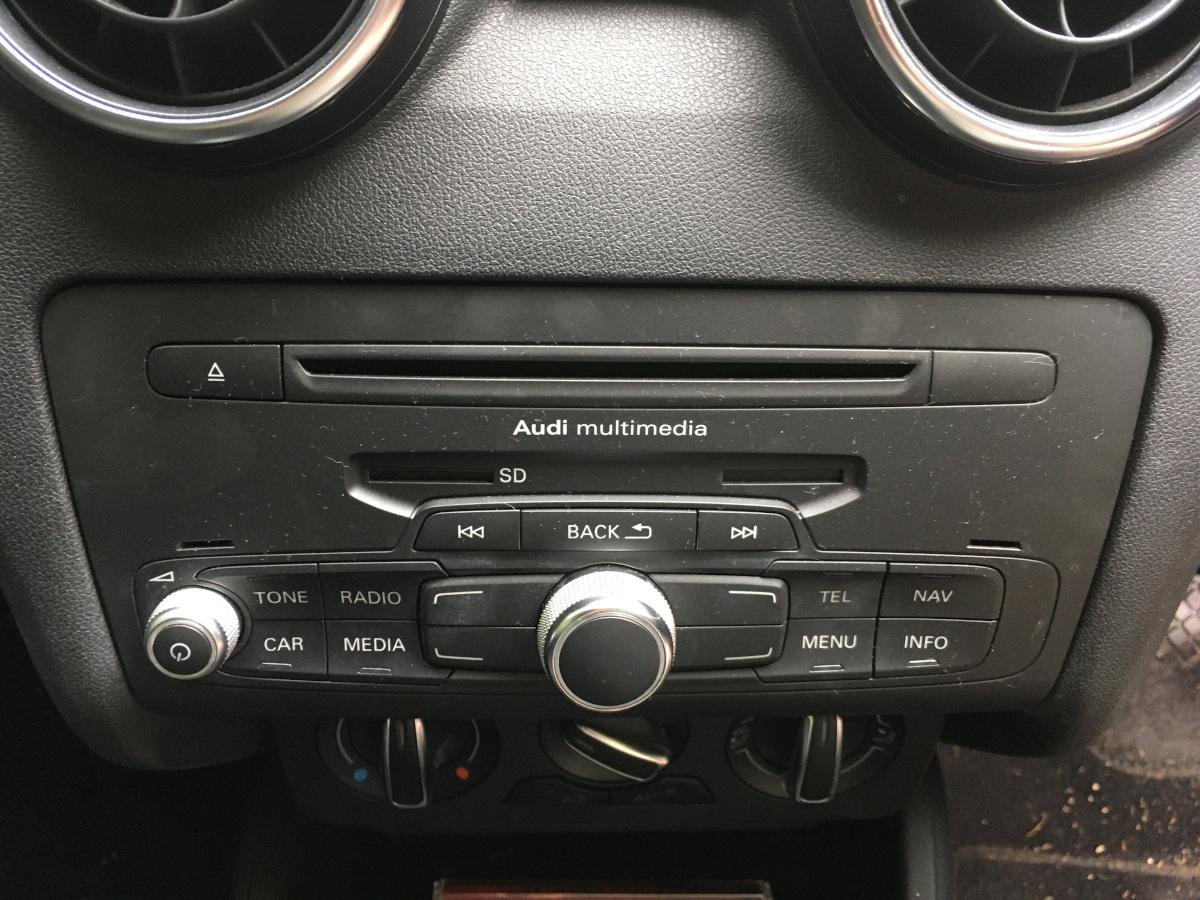
Hi -thanks for the reply. Here's a picture of the radio. I did remove it at the weekend and couldn't see an obvious place where something would plug in at the back. But then I learned about the Audi media interface - where is that? If it doesn't have a USB interface, is it easy to retrofit one? Paul
-
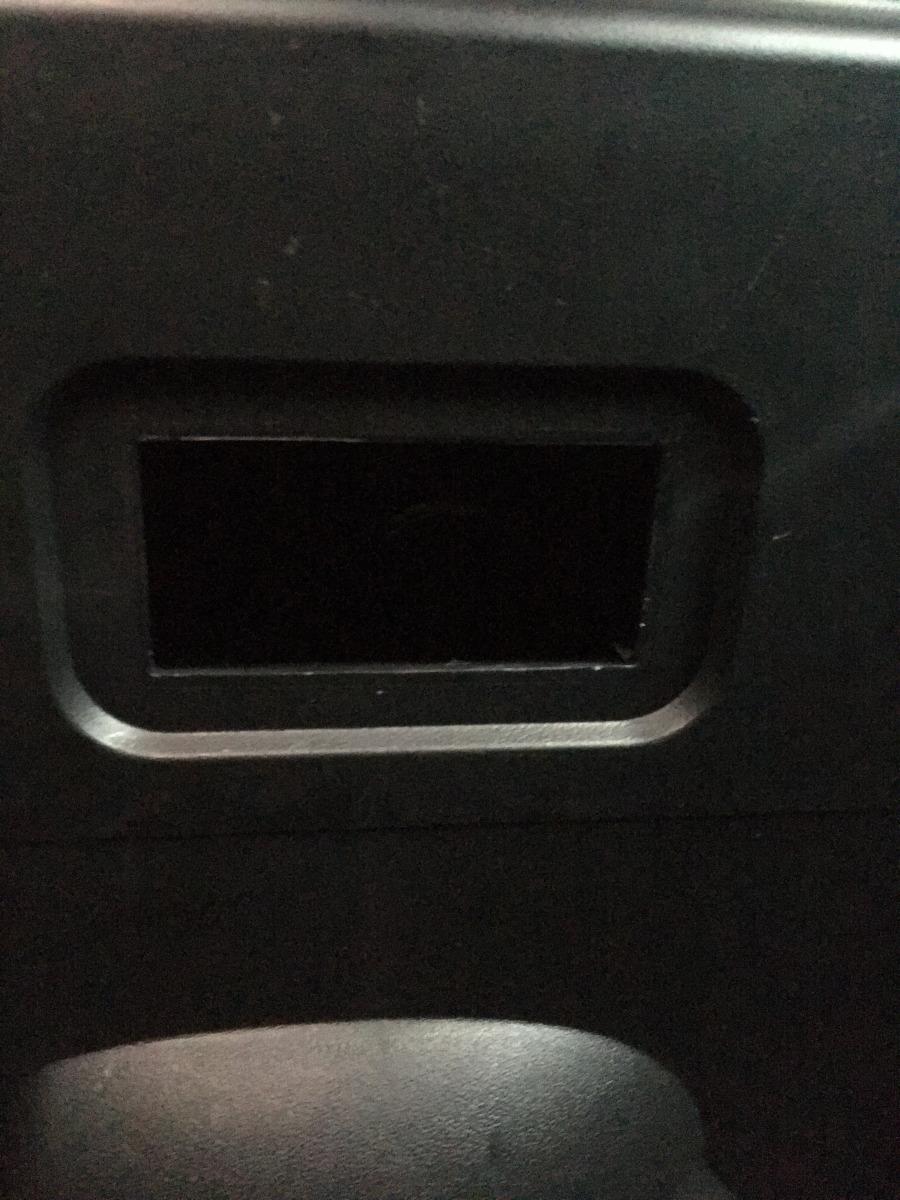
Hi all, apologies if this is a dumb question, I'm still learning Audi ways... My wife has recently bought a 62 plate A1. I've been looking at how to connect an iPod or other USB device and I'm totally stumped. Reading around, I think there should be a socket in the glovebox that I plug an adapter cable into, but there's nothing there. In the top of the glovebox, there's a hole, but I can't feel any loose cables that an adapter might plug into. Am I missing something obvious? Thanks Paul
-
Hi, Not quite an owner yet. Just put down a deposit on a 2012 A1 for my wife. Hopefully picking it up on Friday.