Sh4dow85
Members
-
Joined
-
Last visited
Everything posted by Sh4dow85
-
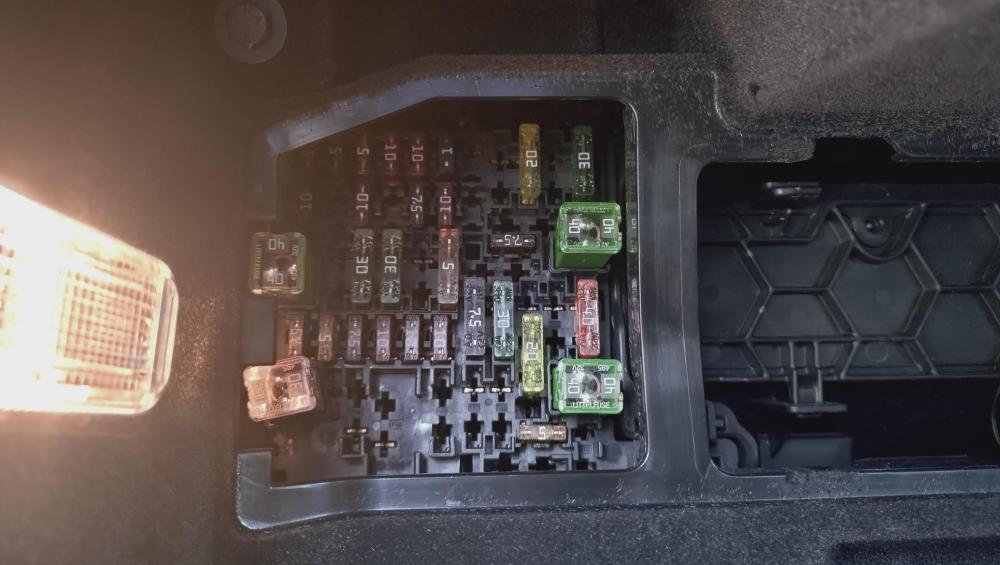
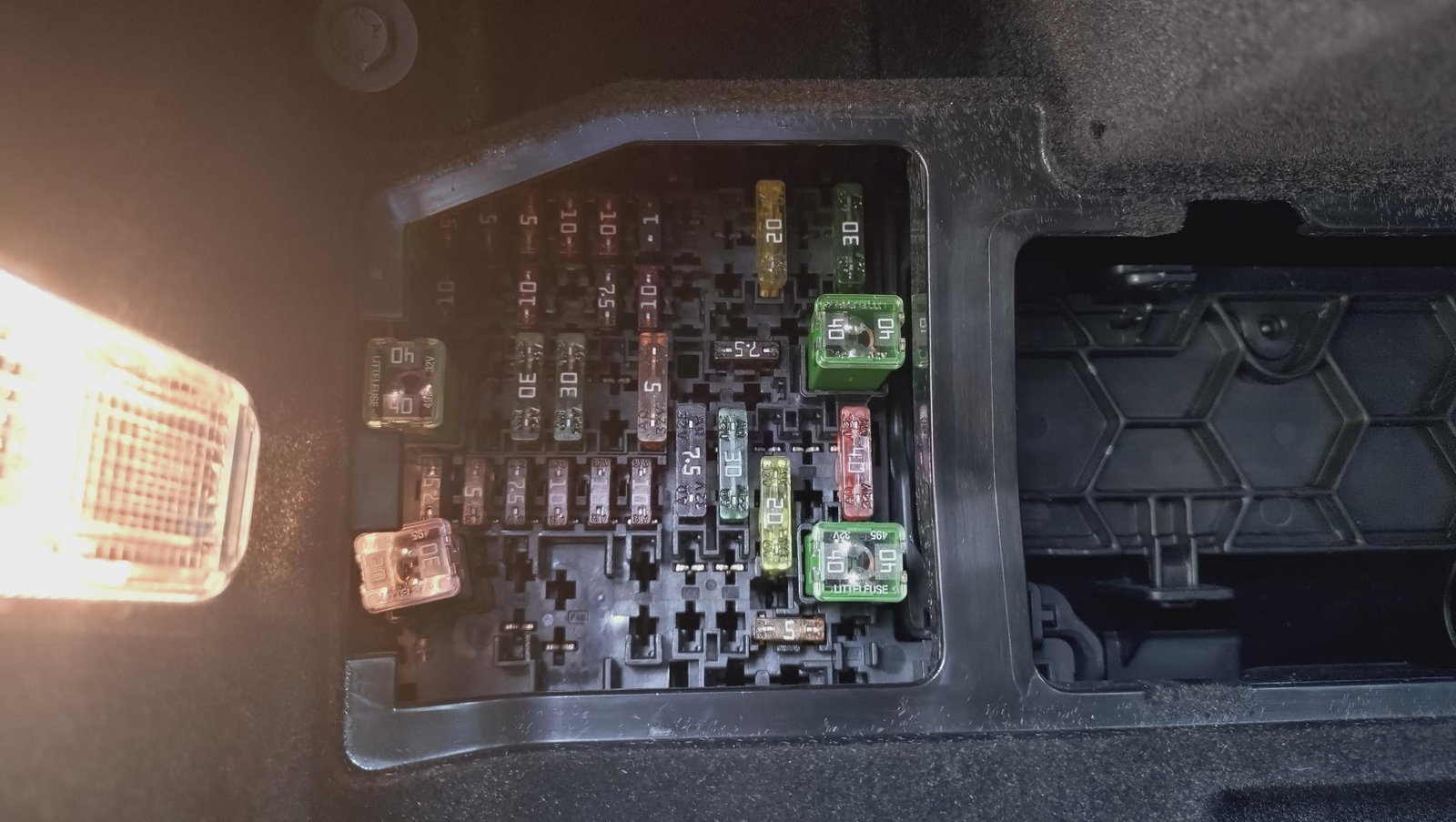
I don't have a multimeter, but the OH may have one I can steal borrow. Otherwise I can pick one up easily enough. Instructions state to select a fuse associated with a function which can only be used when the ignition is on - usually cig lighter/heated seats etc. Can't be more than a 20amp fuse. Already found the bottom 20amp fuse is for my cig lighter/12v socket, so that should be fine. Did try some other fuses though when it didn't work, but still no luck. Didn't have the spade (negative) connected to the bodywork every time though (was just holding it), but not sure if that is the reason it won't work - if I could work out where to feed it to out of the glovebox and what to screw it to then I could rule that out...
-
I've recently bought a 2015 TT, and am trying to fit my existing Nextbase dashcam. I've bought the hardwire kit but I'm having a mare in getting it to work!! 😫 I've tried mutiple fuses (F40-CigLighter, F28-MediaPort, F17 InstrumentCluster), but nothing is giving the cam any power at all. The tap fuse is in the right location, and I'm trying it with the igition on. Also can't seem to find a good place to connect the spade connector to the bodywork - is there a way to feed it out the back of the glovebox somewhere, either to the engine bay or out to the side to get to the bodywork? Will the cam work without this being connected? Any help/suggestions/advice would be most appreciated! 🙏