CombTech
Members
-
Joined
-
Last visited
Everything posted by CombTech
-
-
-
-
Hi Trevor Thanks for the welcome and reply, the problem is I have involved Audi UK as well as the Business Manager within Oxford Audi and both are saying they (the screens) are not included, and although on the spec of the car, they (the screens) didn't come with the car. I have pointed out that according to the paperwork the screens need to be ordered by the Audi Centre and placed in the car. Still falling on deaf ears... I have bought 2 x Audi screens from Preston Audi who just happened to have 2 screens available, just wondering whether it's standard practice for dealers to load demonstration cars up with accessories and then sell the cars without including the accessories???
-
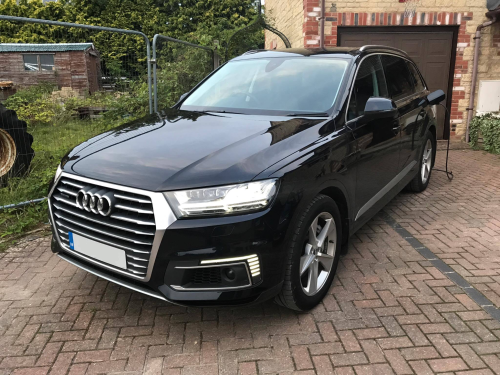
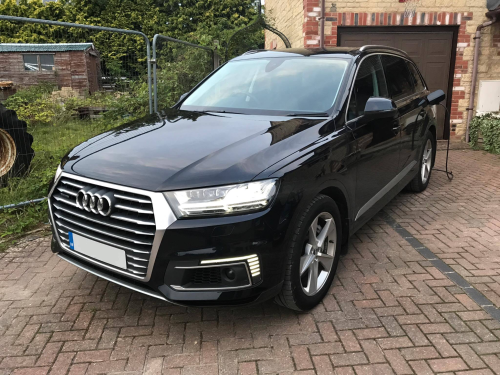
Hi, hope someone is able to help, I have recently purchased an approved pre-owned Audi Q7 e-Tron. On the spec of the car, it clearly states that it has Audi Mobile Entertainment - 9WQ. All Audi documentation states that the 2 10.1 inch screens are included... However, they (Oxford Audi) are saying that the screens are not included with the spec 9WQ... Has anybody purchased this option that could provide a confirmation of the process and whether the screens were included as per the sales price list? Thank you...