




Skip to content
View in the app

A better way to browse. Learn more.

Audi Owners Club (UK)

A full-screen app on your home screen with push notifications, badges and more.

To install this app on iOS and iPadOS
  1. Tap the Share icon in Safari
  2. Scroll the menu and tap Add to Home Screen.
  3. Tap Add in the top-right corner.
To install this app on Android
  1. Tap the 3-dot menu (⋮) in the top-right corner of the browser.
  2. Tap Add to Home screen or Install app.
  3. Confirm by tapping Install.

Welcome to the Audi Owners' Club - An Independent community!

Membership is completely free, and our community is built by enthusiasts, for enthusiasts. We’re a proudly independentnon-official club, so all the help and opinions you’ll find here come directly from members with real experience of Audi ownership.

Join the club now!
 

Bank 1/2 sensors

Featured Replies

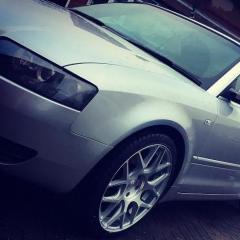
Hi all. Bought a Audi A4 B6 Cabrio a couple of weeks ago and the engine management light keeps coming on for the bank 1 and 2 senors. The machanic in the garage thought id give it a bit too much and its not liked it but then it came on again. Second time he told me to try some v-power fuel to clean the sensors. Nope still came on again. So today its going back in today to see an audi specialist. Car is the 2.4 V6. Please note the light is only coming on when my fuel gets low and it doesnt come on all the time just pretty much at wrrk intervals. Cheers guys. 

Hi Nathan....welcome to the Forum

Not sure why it would only come on when the fuel level is low but if it is when you give the car 'some welly' then it may be either a blocked cat/exhaust or a slight exhaust leak which could be causing the light to come on.

Let us know how you get on with it

Cheers  Trevor

Create an account or sign in to comment


Background Picker
Customize Layout

Account

Navigation

Search

Search

Configure browser push notifications

Chrome (Android)
  1. Tap the lock icon next to the address bar.
  2. Tap Permissions → Notifications.
  3. Adjust your preference.
Chrome (Desktop)
  1. Click the padlock icon in the address bar.
  2. Select Site settings.
  3. Find Notifications and adjust your preference.